Create RI Budget
Introduction
In this section, you will practice creating a Reservation Instance (RI) Budget in AWS Billing and Cost Management.
ℹ️ Information: Since you will not be using Reserved Instances within the scope of these labs because Reserved Instances require upfront payment, this lab is for demonstration purposes only. Therefore, you can either follow along or just view the instructions.
Initialize Reservation Budget
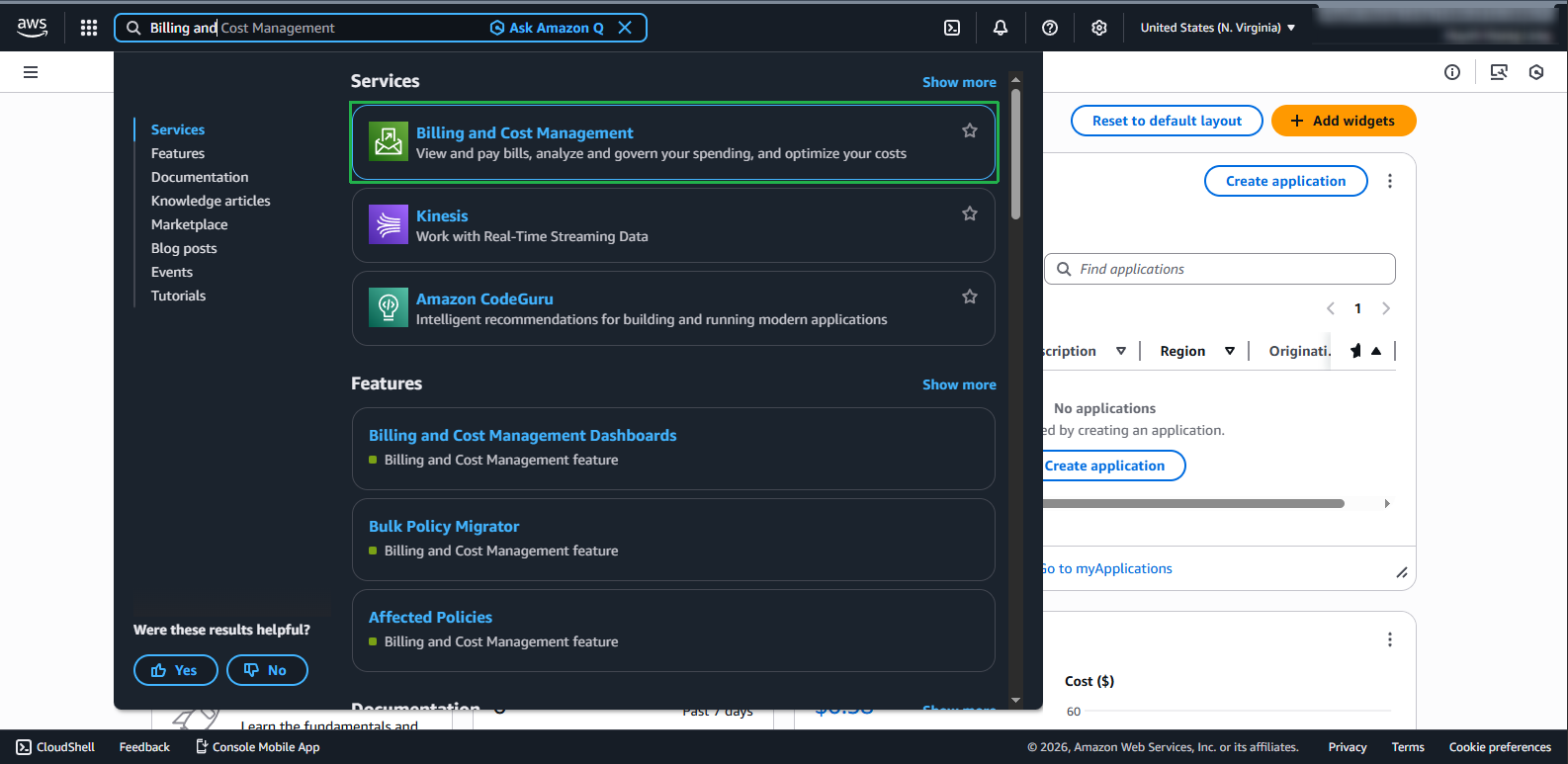
- Log in to AWS Management Console and select AWS Billing and Cost Management service in the search bar.
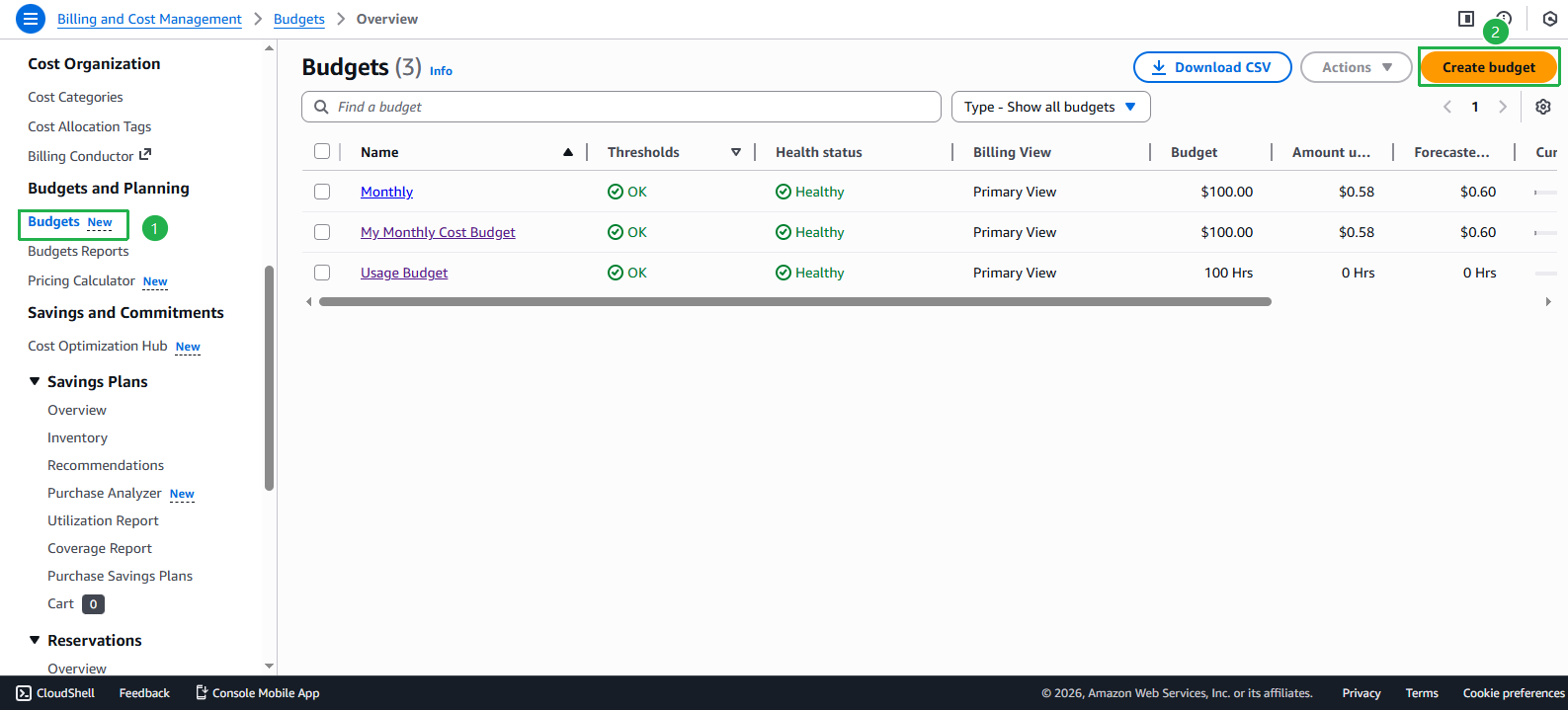
- On the management page, select Budgets. Select Create budget.
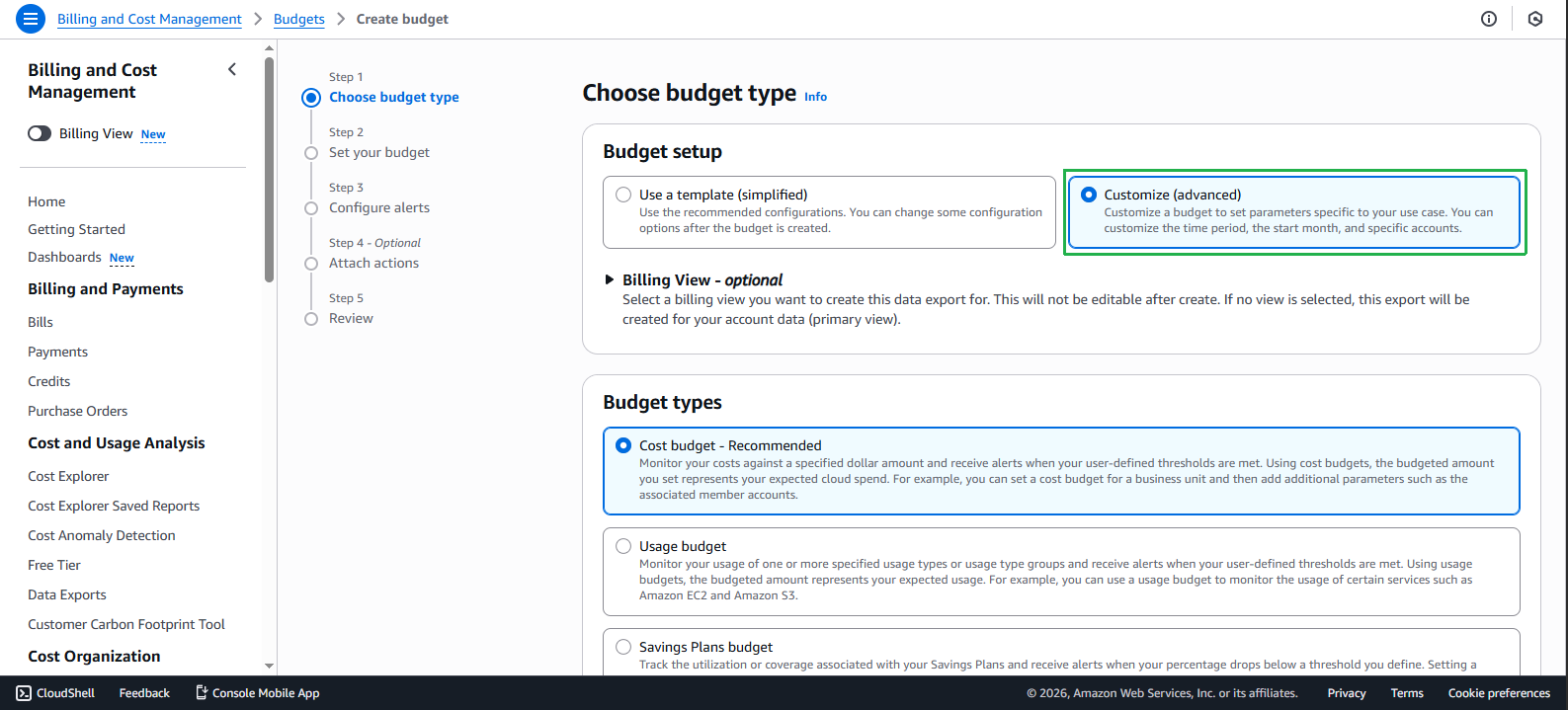
Perform Budget setup:
- Select Customize
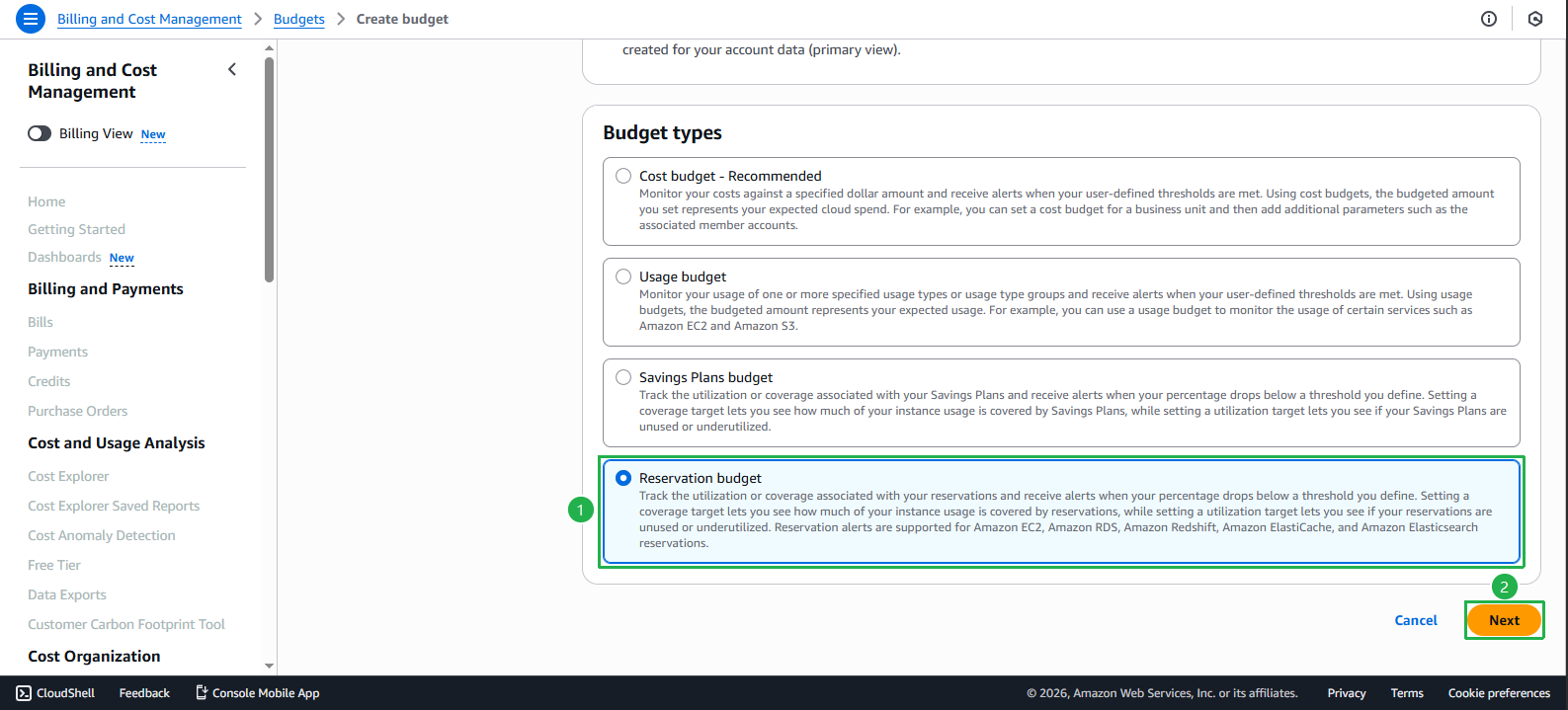
- Select Reservation budget
- Select Next
- Set budget name.
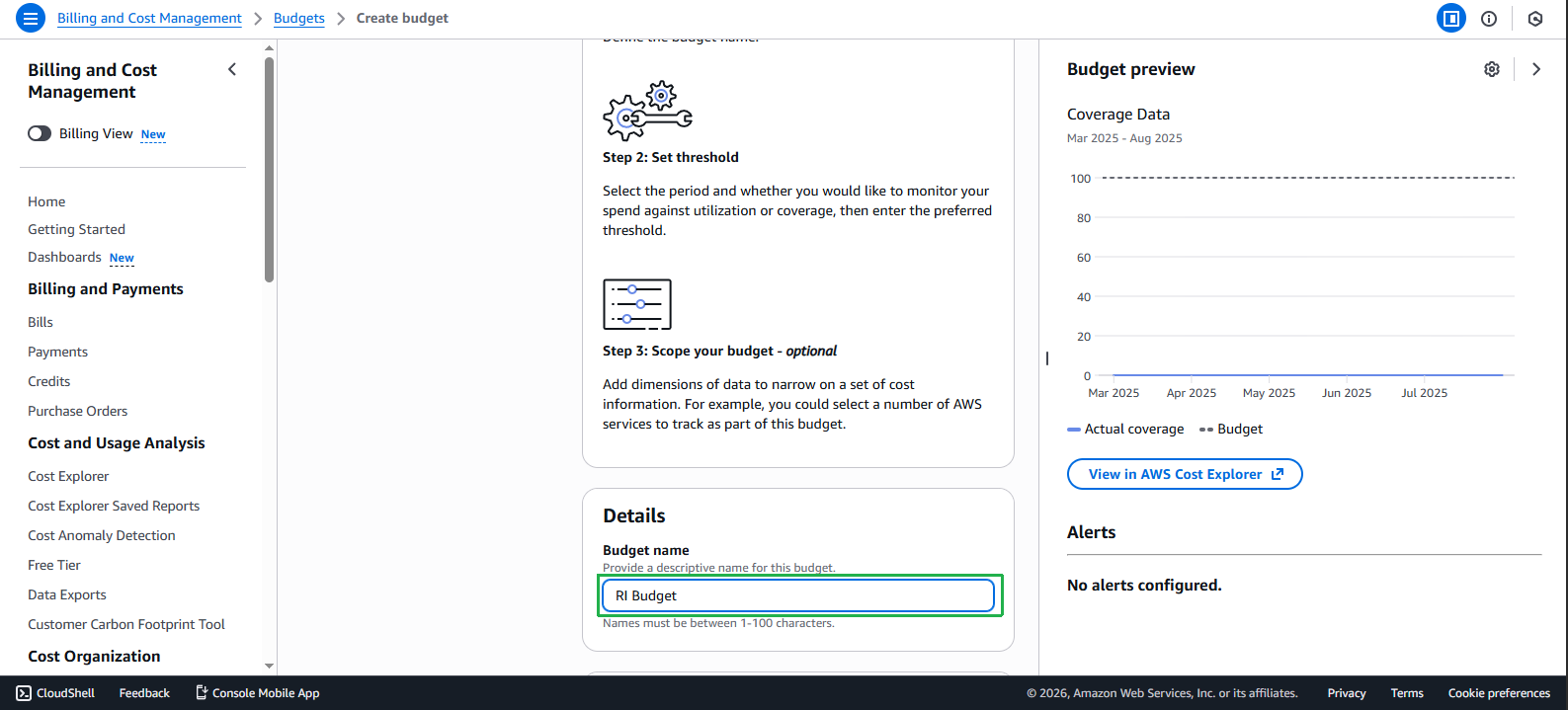
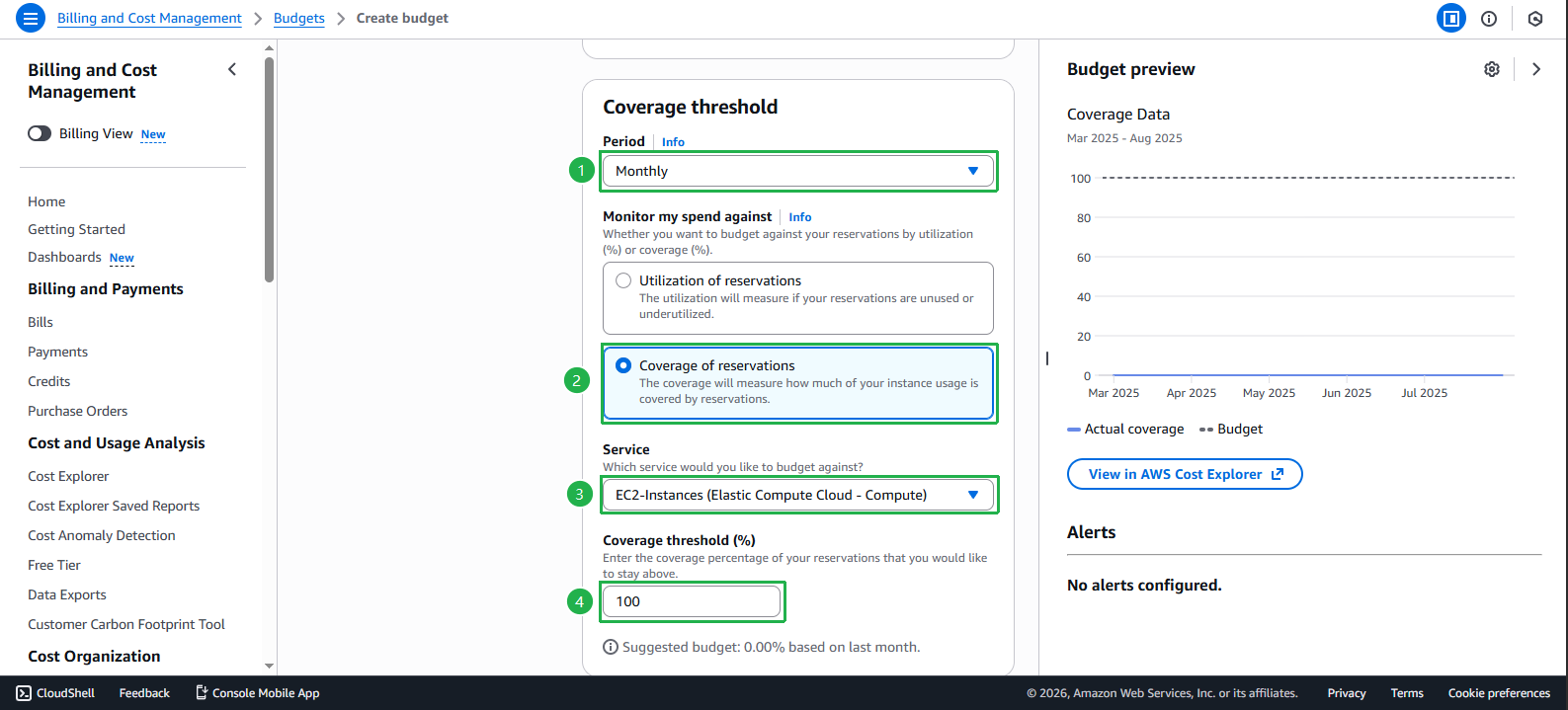
- Configure Coverage threshold.
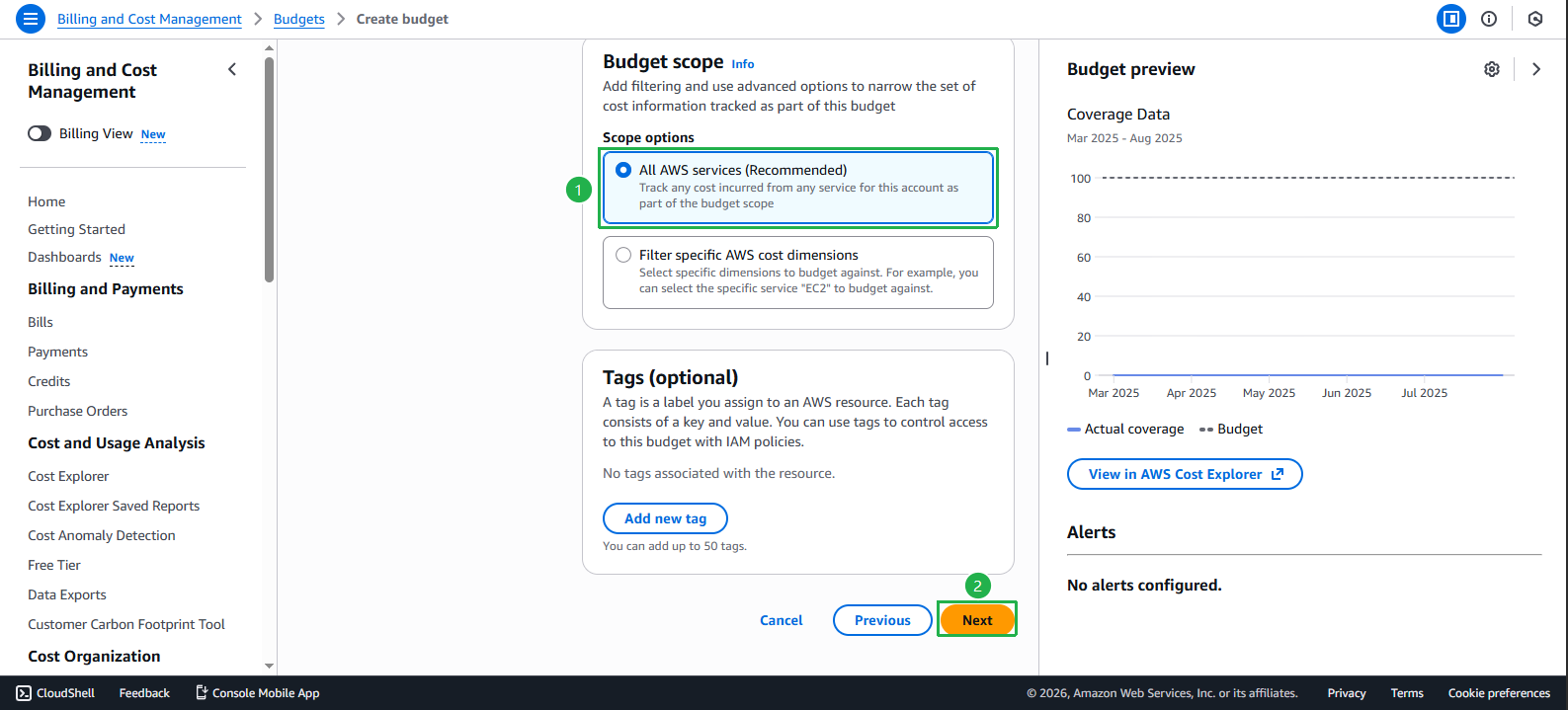
- Configure Budget scope.
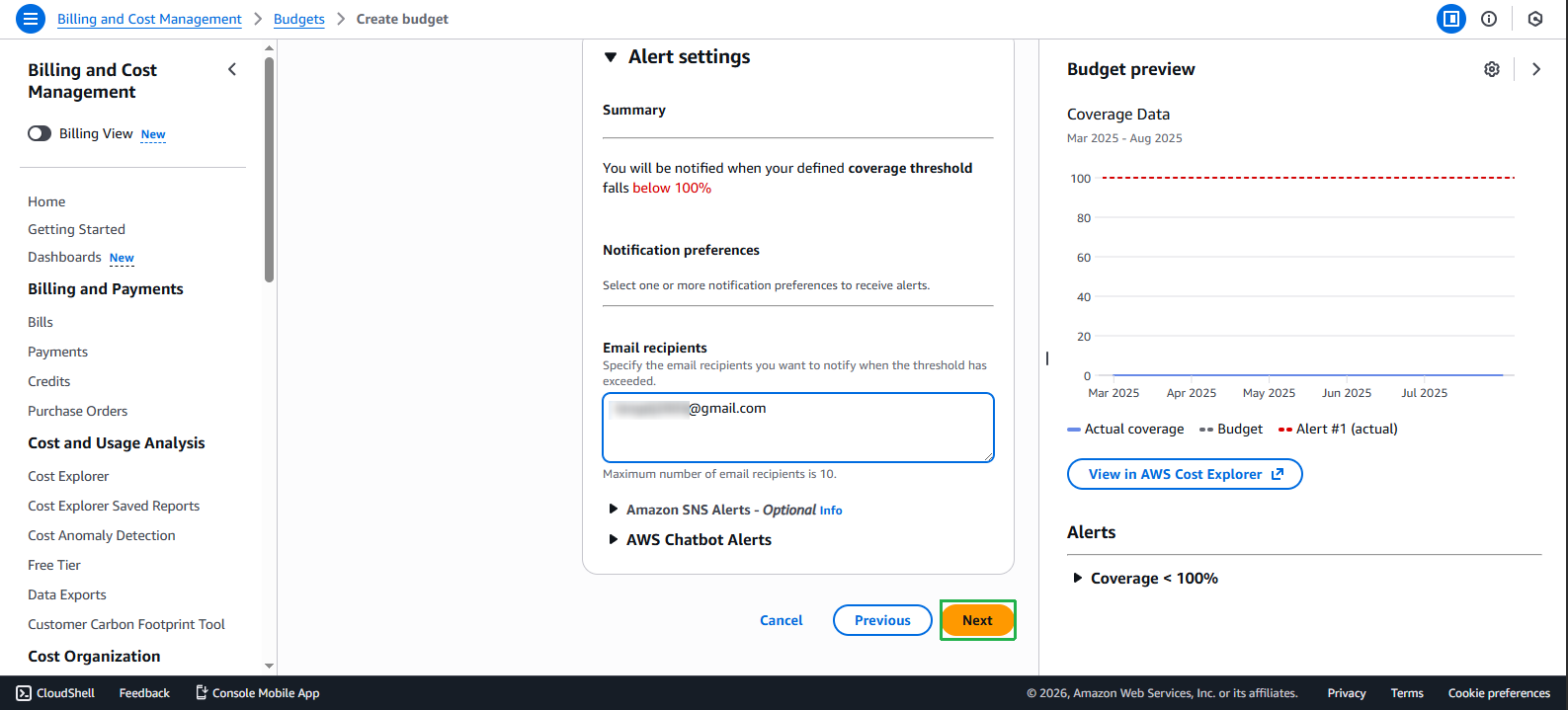
- In the Alert setting section, enter email address. Select Next
- Select Create budget.
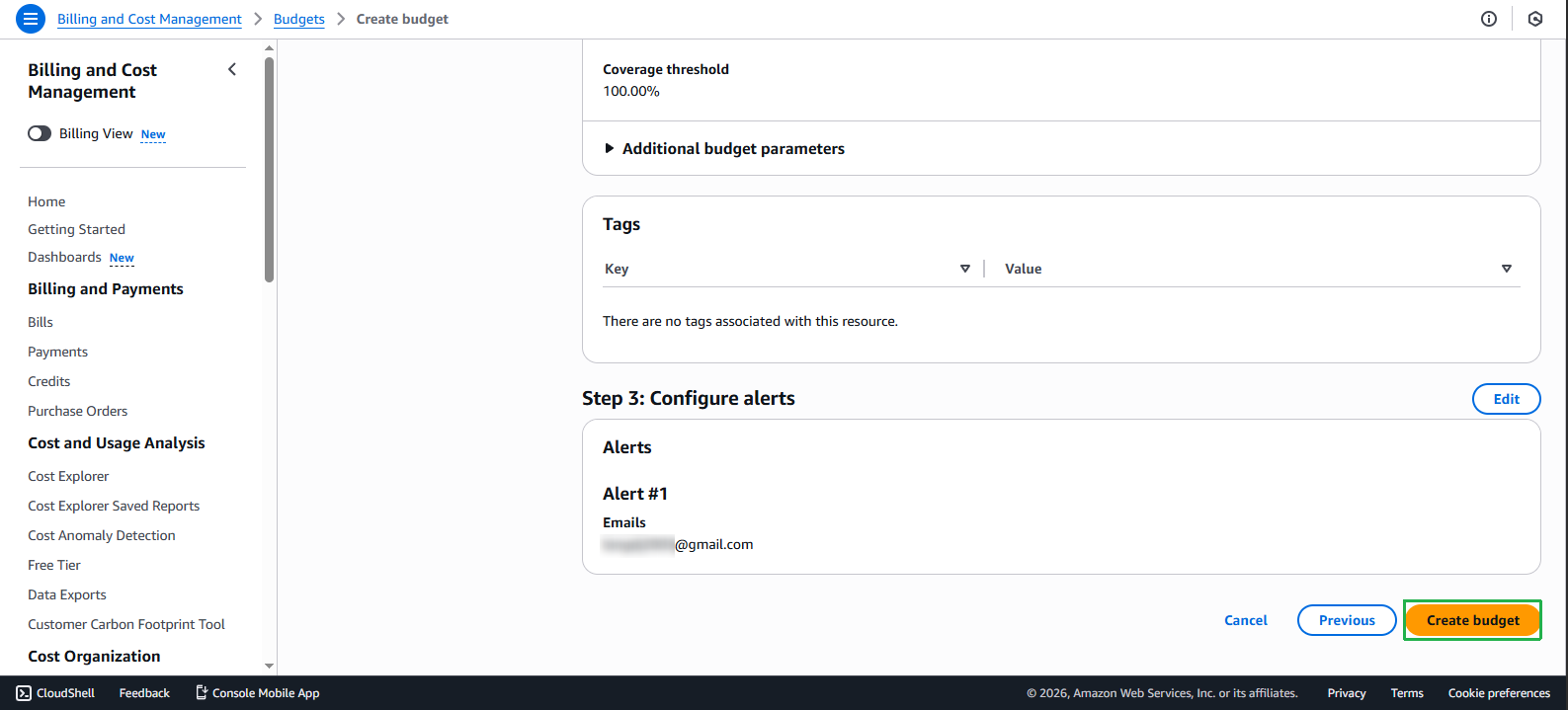
- Complete budget creation.
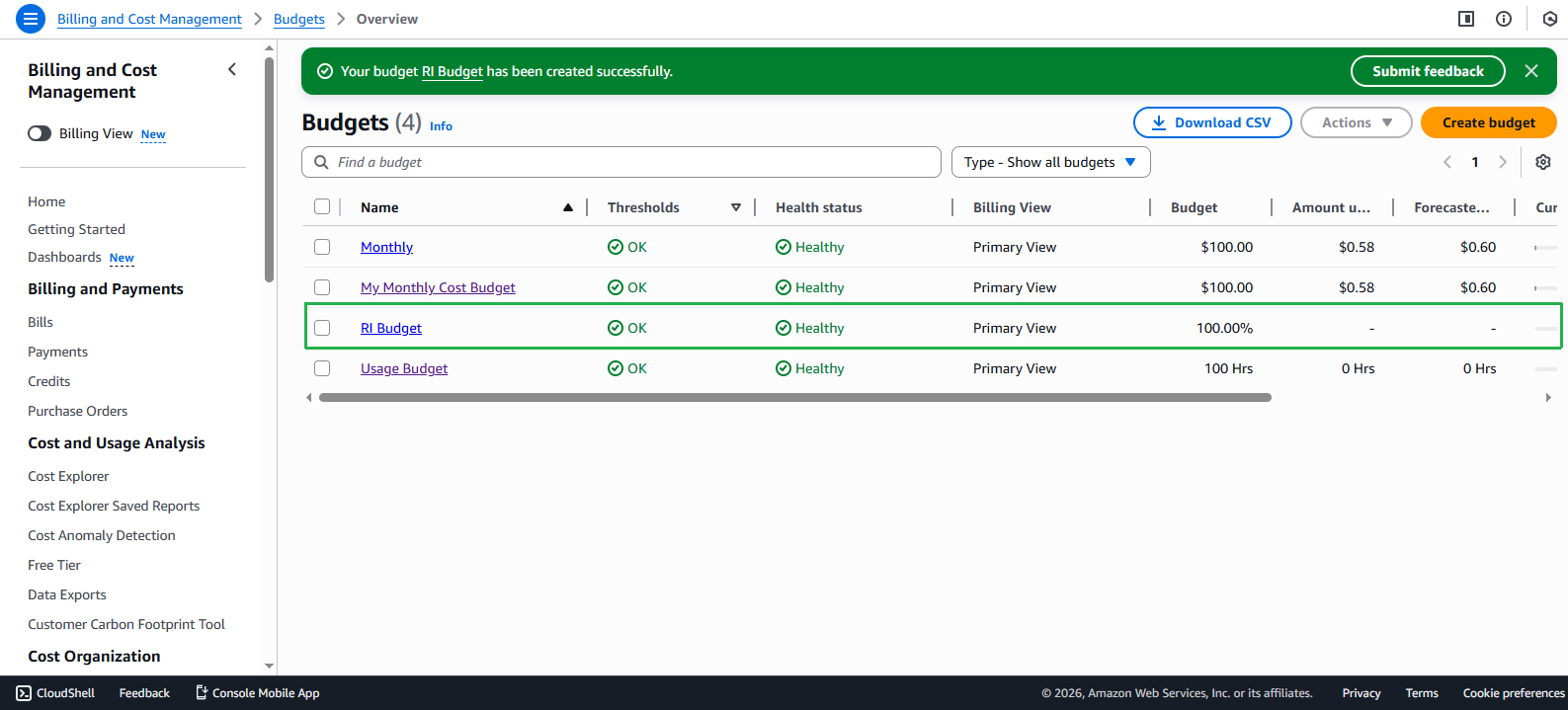
- Check the created budget.
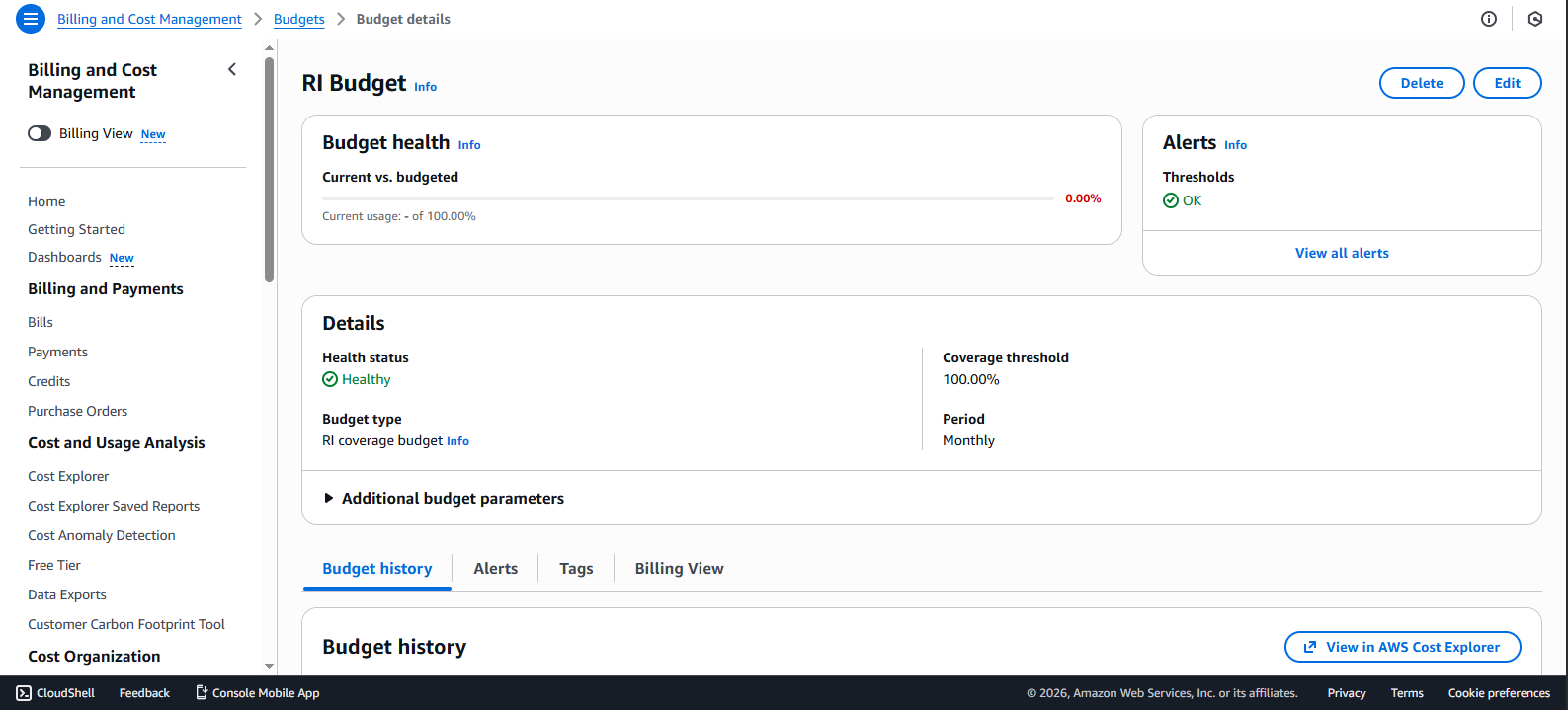
💡 Pro Tip: Reservation Budgets help you monitor Reserved Instance utilization and save costs. Setting appropriate alert thresholds will help you optimize Reserved Instance usage.