Create Cost Budget
Overview
In this section, you will practice creating a Cost Budget - an important tool that helps you monitor and control your AWS costs.
Initialize Cost Budget
ℹ️ Information: New AWS accounts can only create Cost Budget initially, other budget types may not be available immediately.
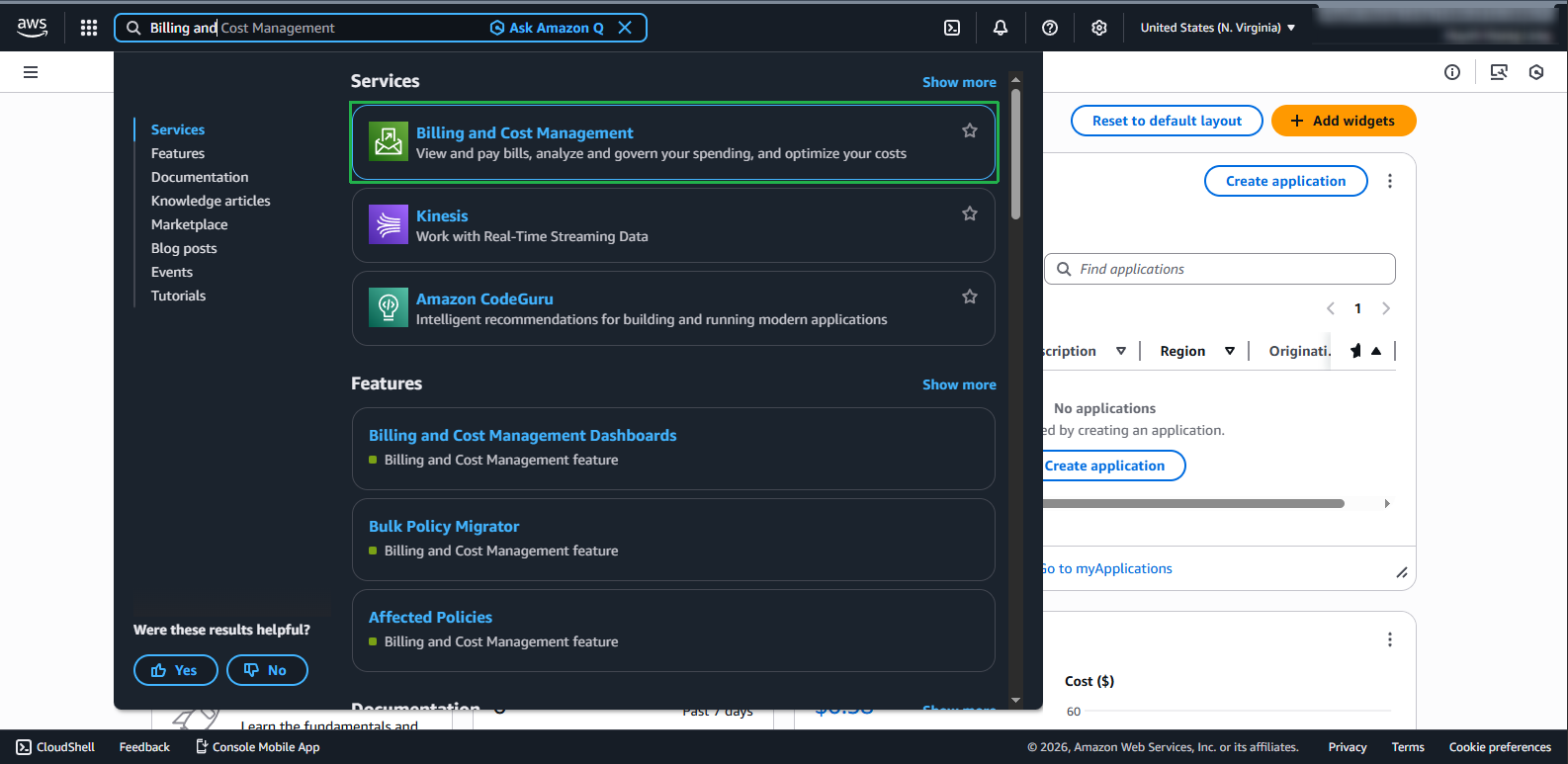
- Log in to AWS Management Console and find Billing and Cost Management service in the search bar.
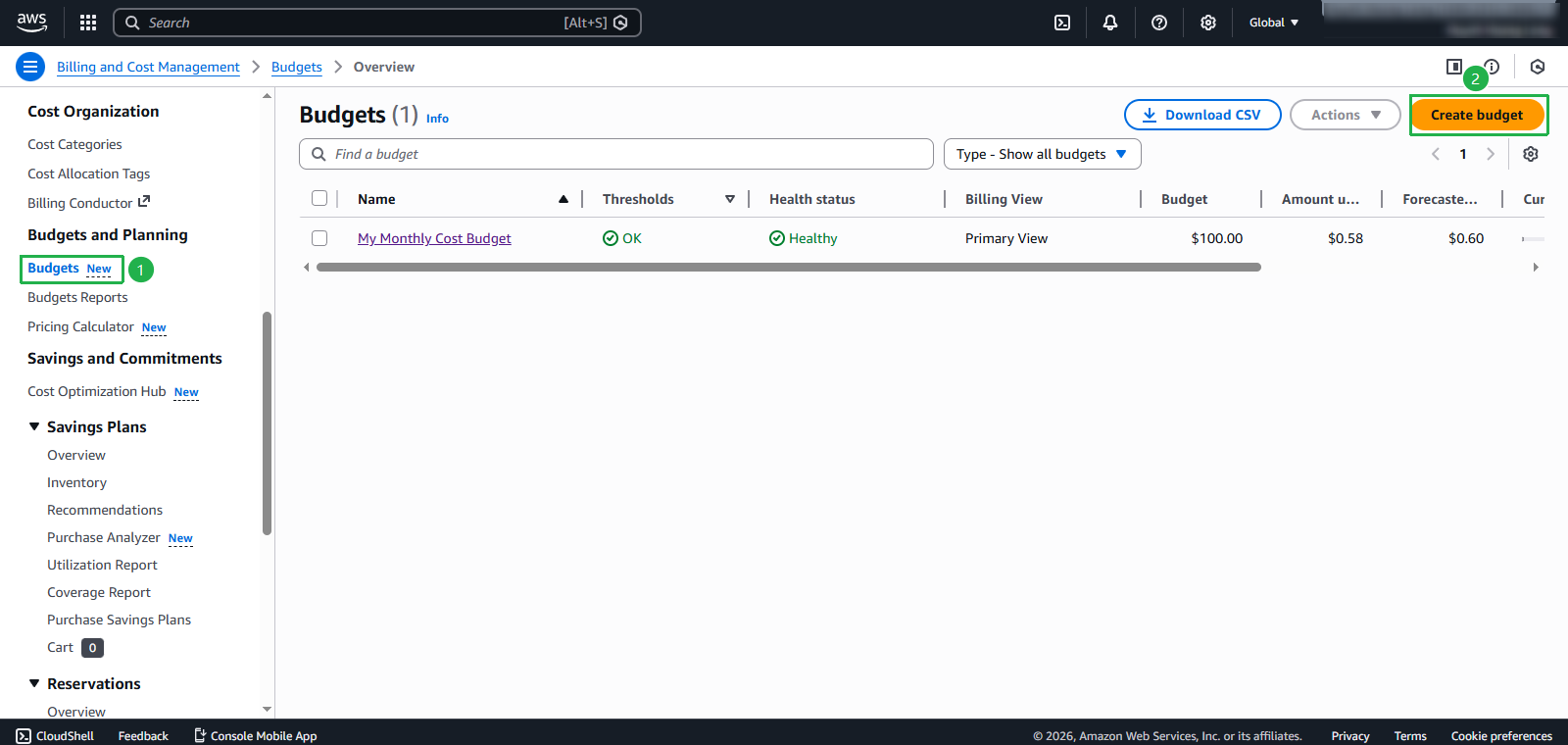
- On the management page, select Budgets from the left menu. Click the Create budget button.
Set up Budget Configuration
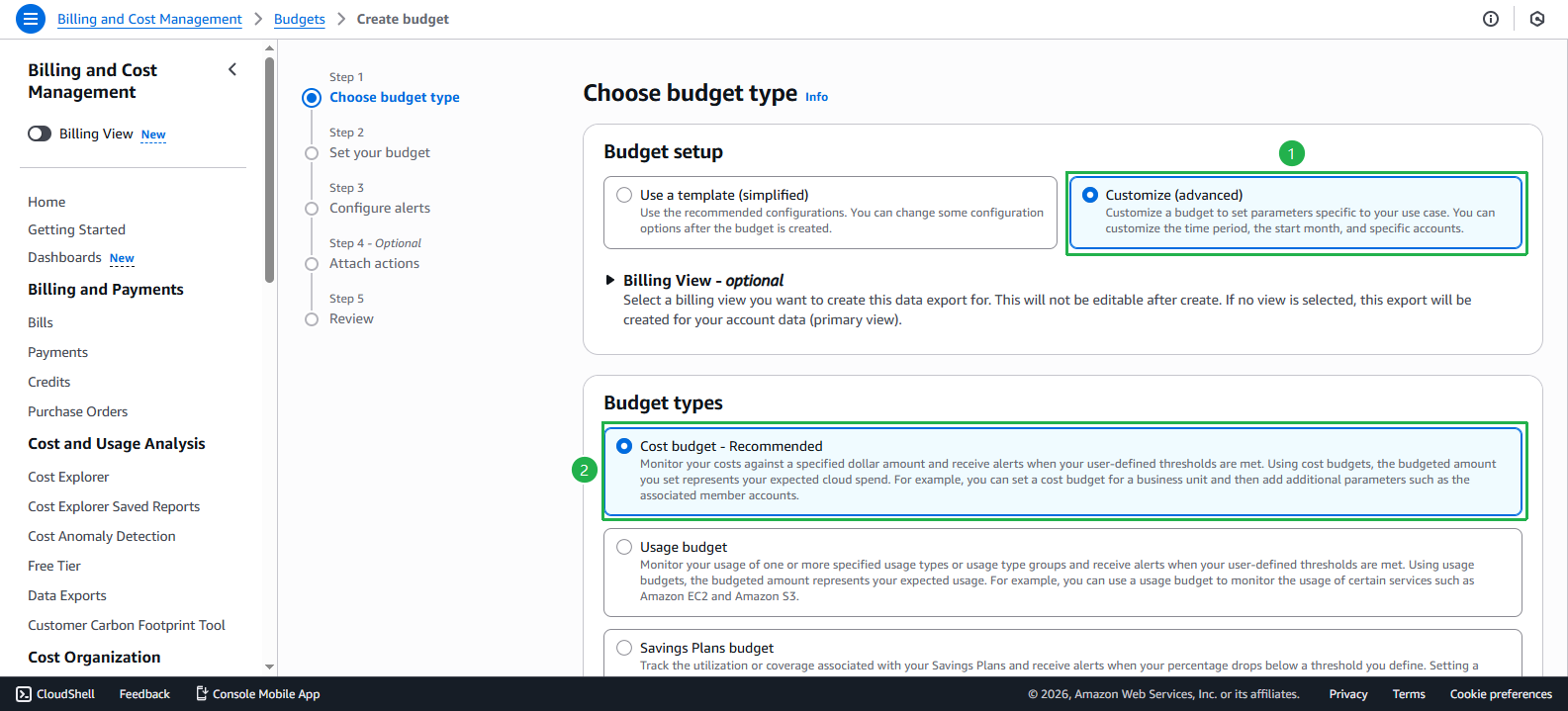
- In the Budget setup section:
- Select Customize
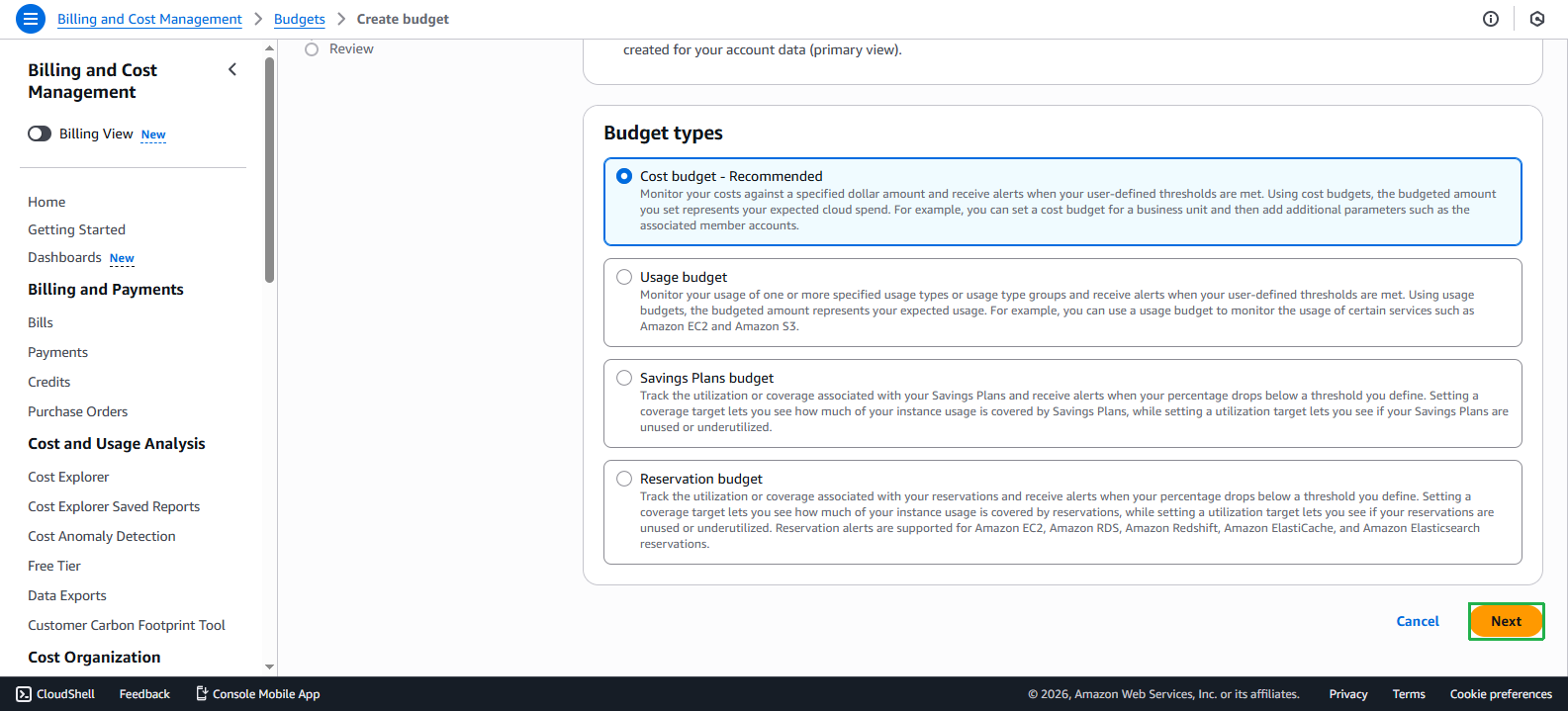
- Under Budget types, select Cost budget
- Click Next
- In the Set your budget interface:
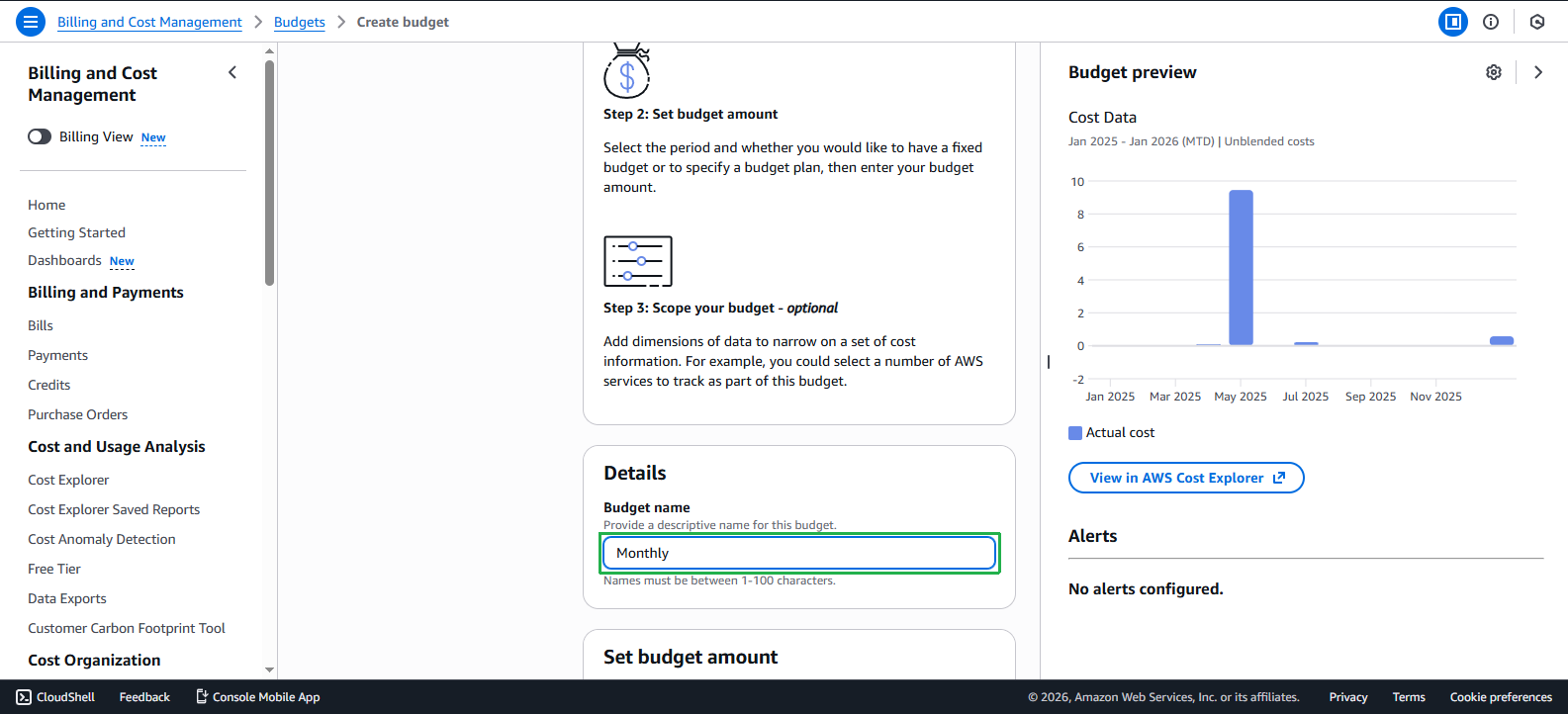
- Under Budget name, enter
Monthly
- Under Budget name, enter
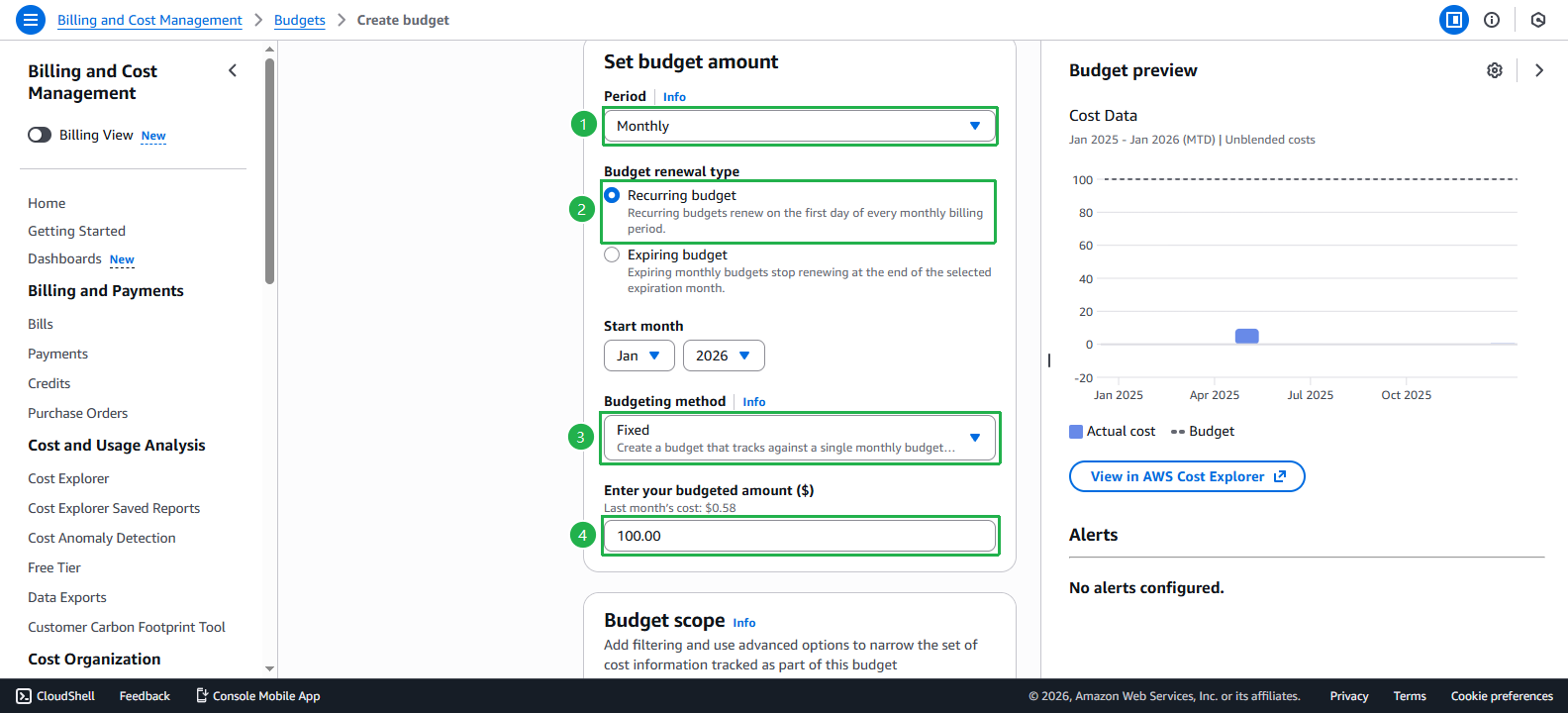
Period: Choose the time period for Budget:
- Daily
- Monthly
- Quarterly
- Annually
Budget effective dates:
- Recurring Budget: If you want the Budget to repeat periodically
- Expiring Budget: If you want the Budget to apply only once
💡 Pro Tip: All time zones in AWS Budget use UTC standard.
Specify your monthly budget:
- Fixed: If you want the budget for each period to be the same
- Monthly Budget Planning: If you want to set different budgets for each month
- Budgeted amount: Enter the amount corresponding to your budget
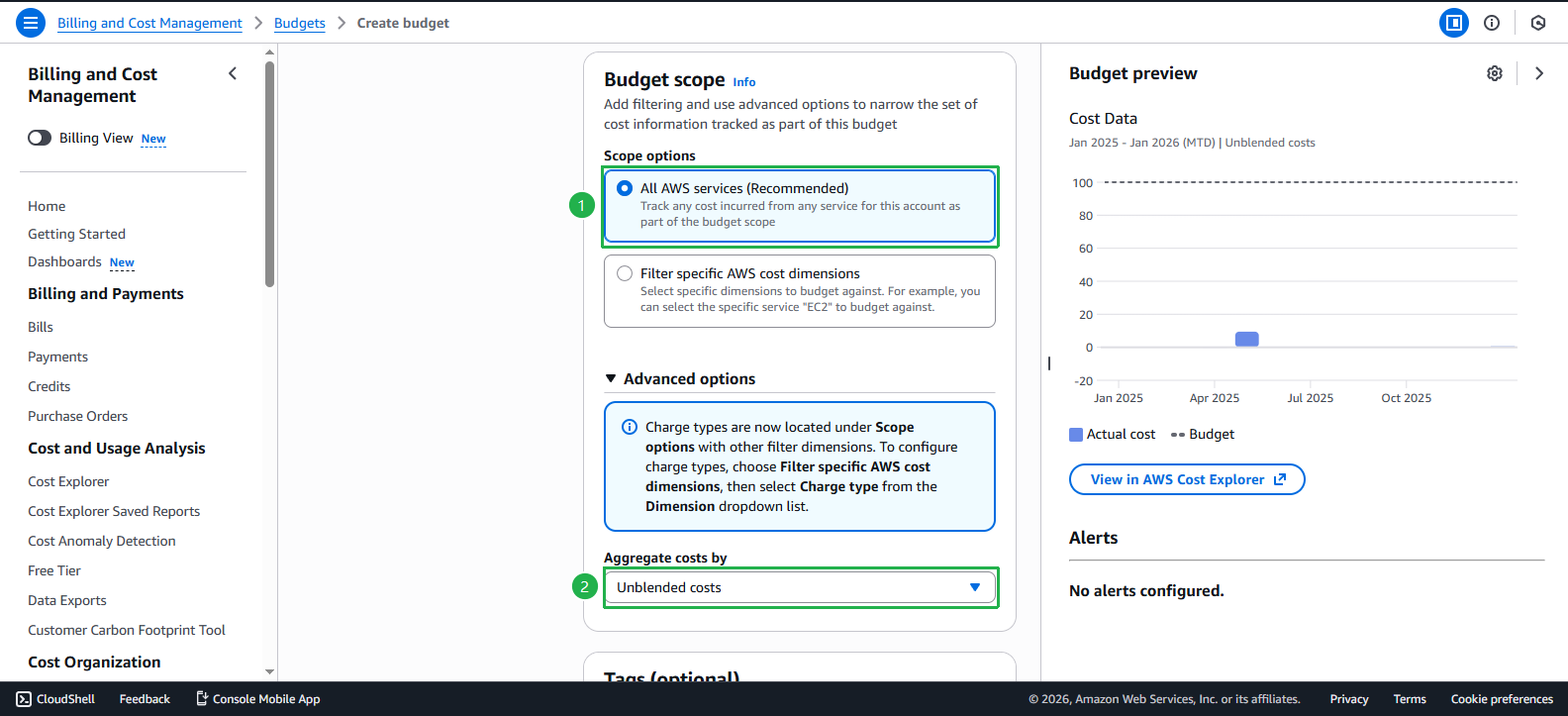
- In the Budget scope section, select All AWS services to apply budget to all AWS services. Under Aggregate costs by, select Unblended costs. Then click Next.
Set up Alerts
- Select Add an alert threshold to set alert thresholds.
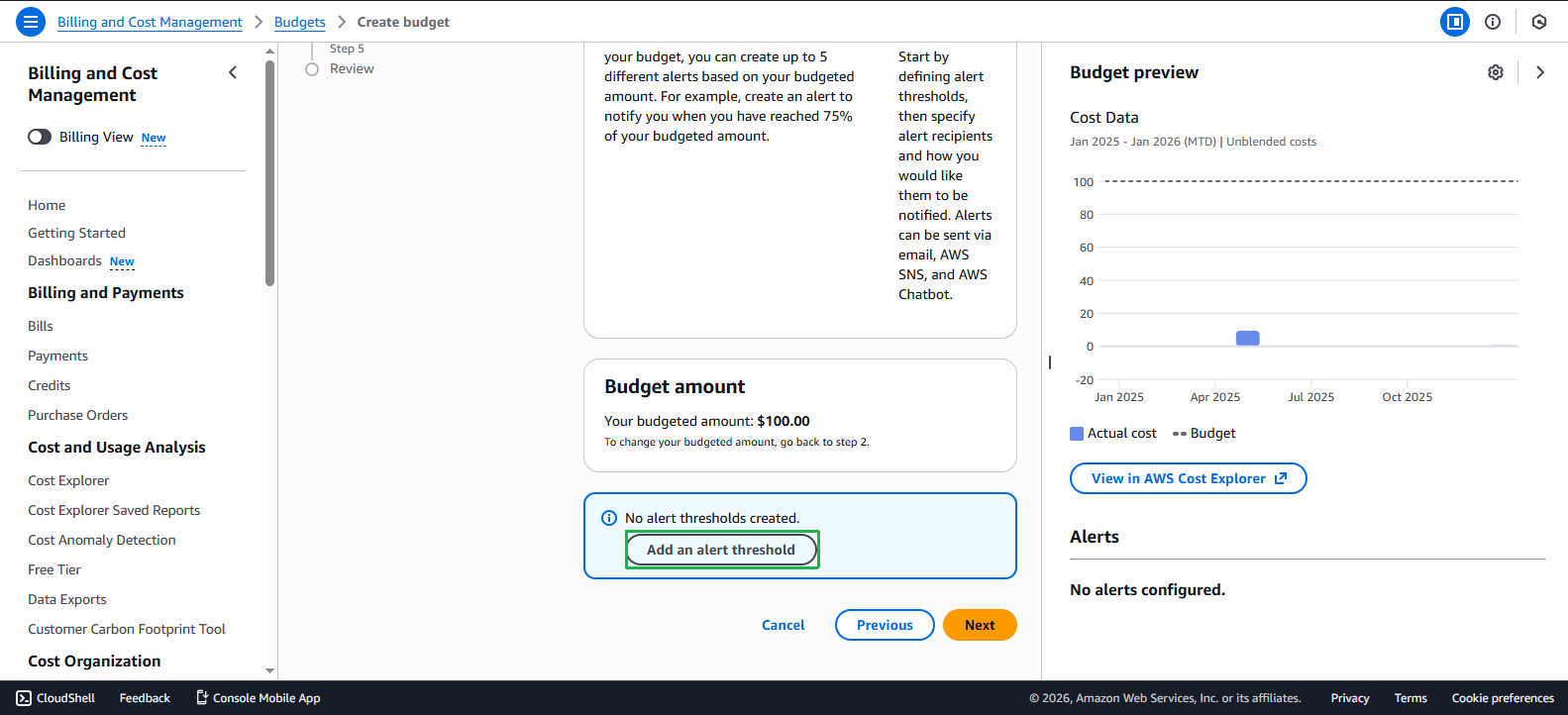
- Configure detailed settings for Alert and select Next.
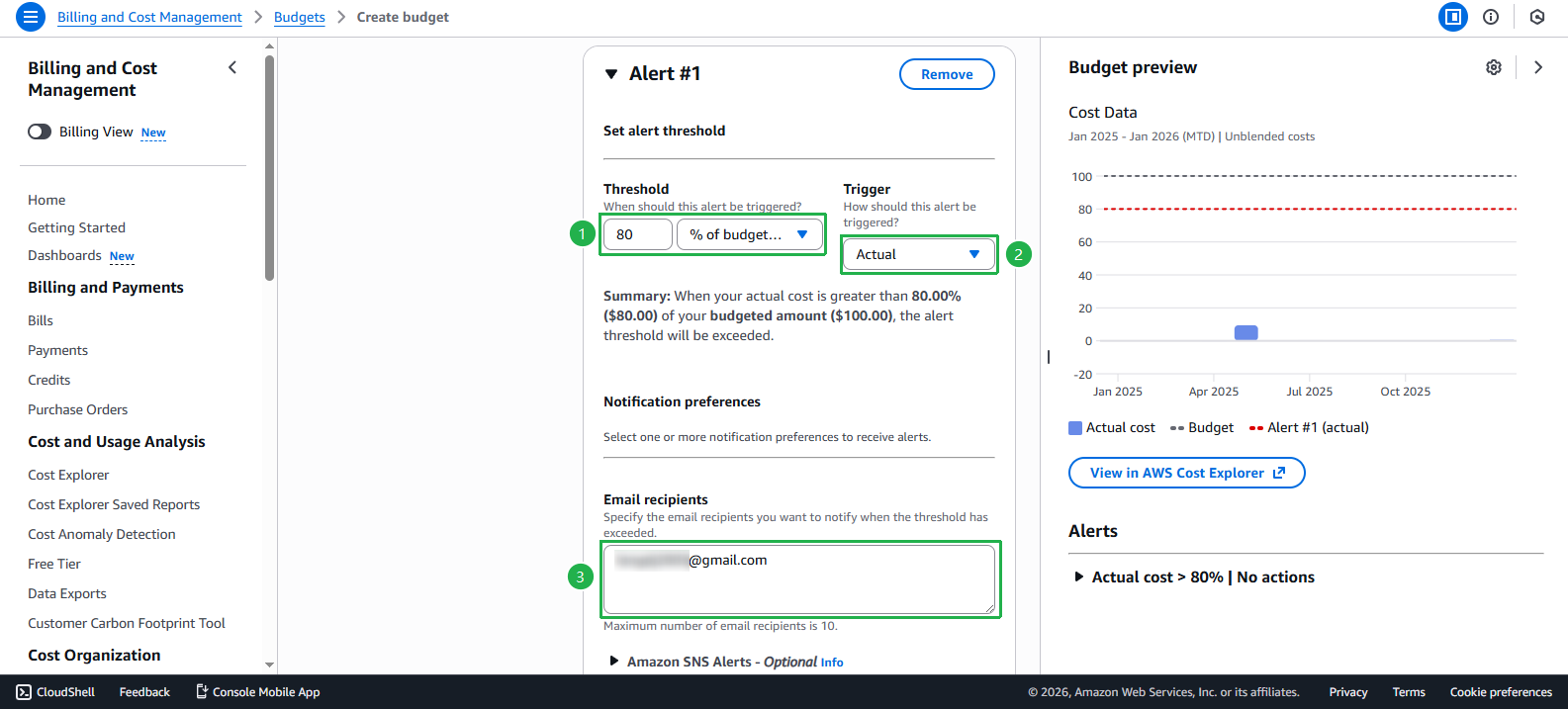
- Review action settings (if any) and select Next.
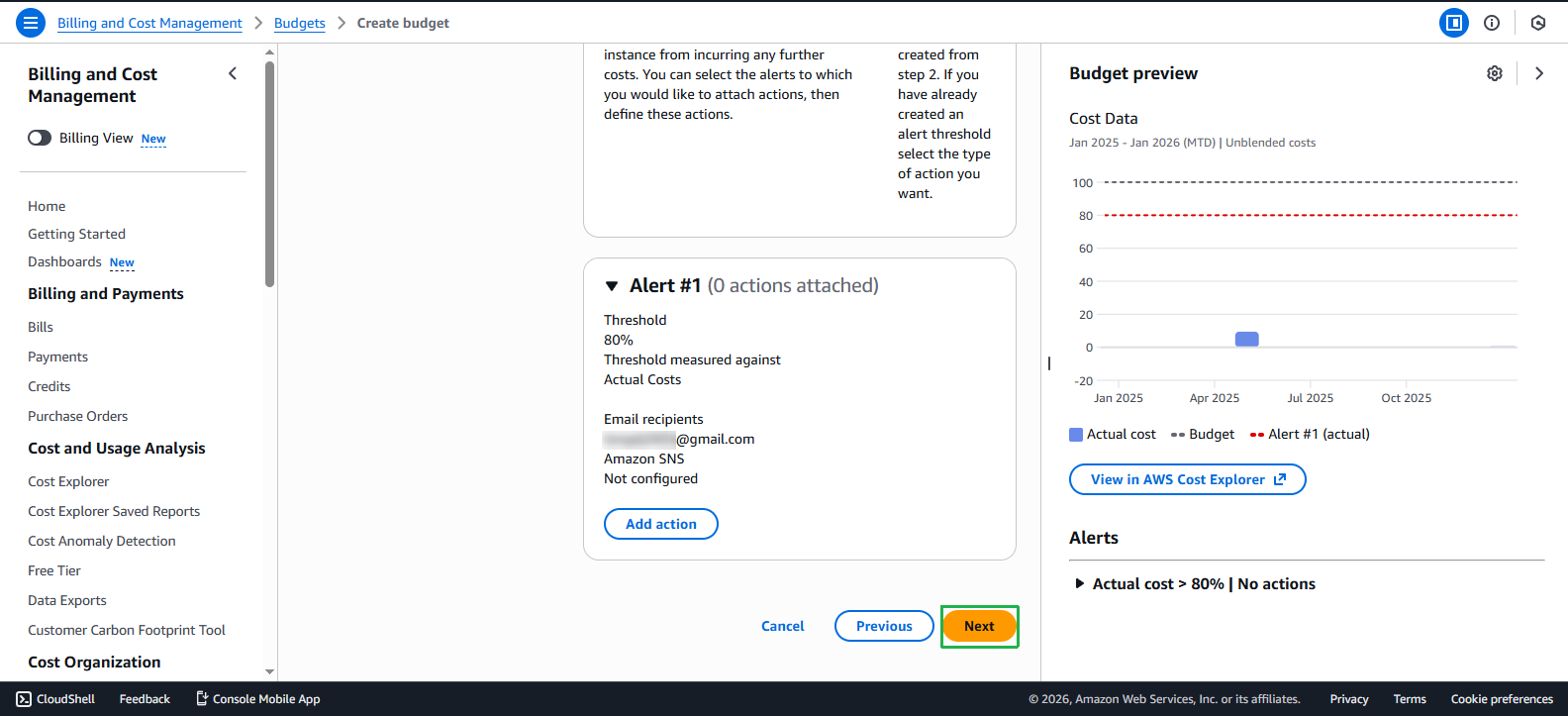
- Review all configurations and select Create budget to complete.
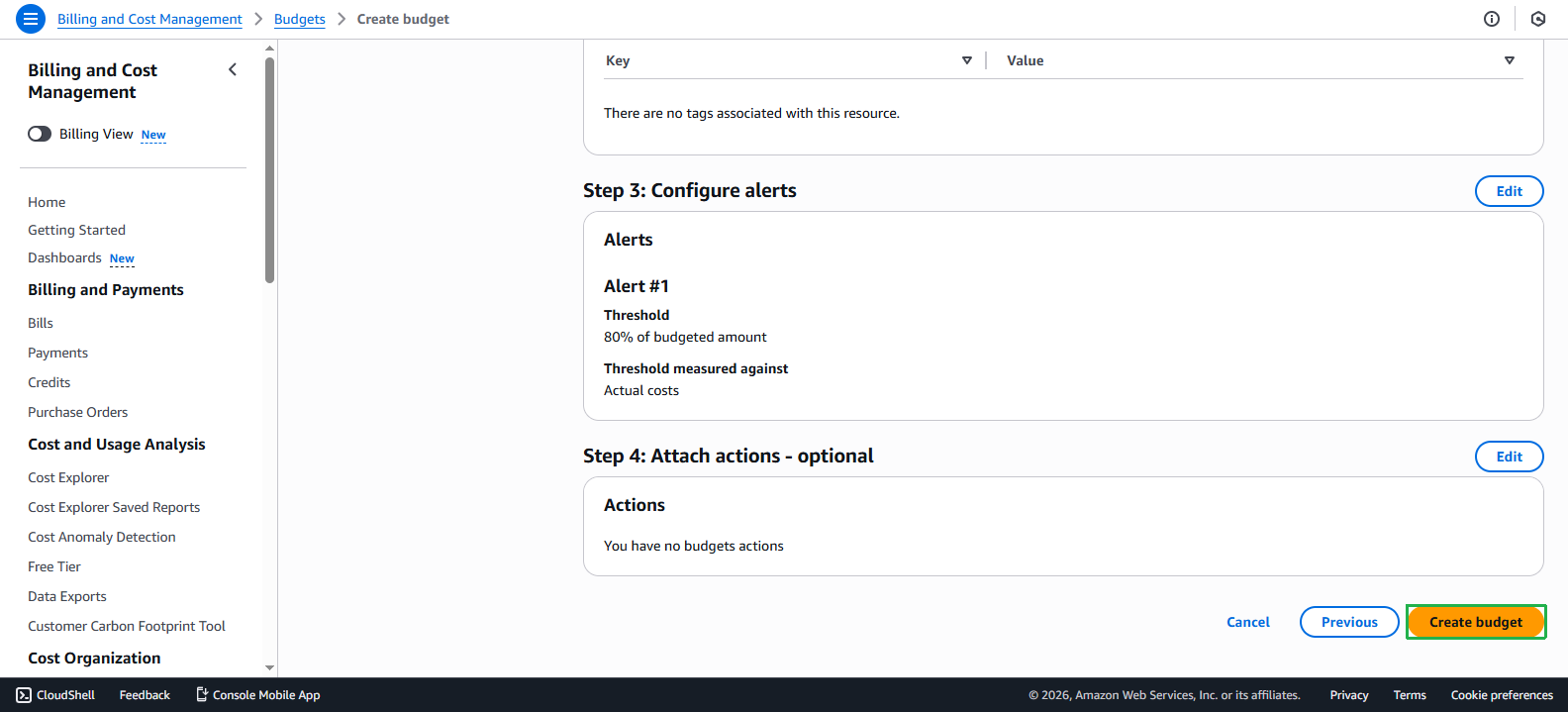
- Confirm Budget has been created successfully.
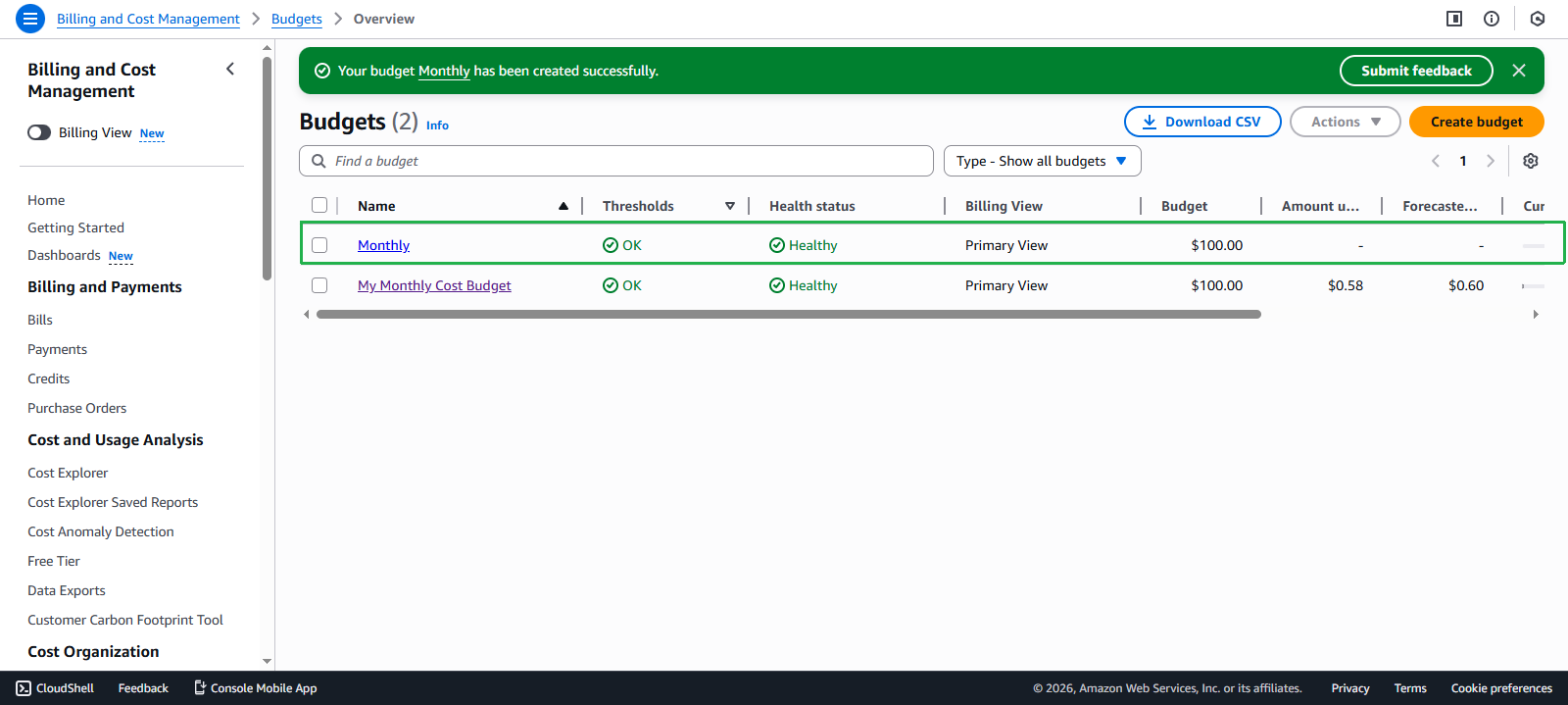
Benefits of Cost Budget
ℹ️ Information: Cost Budget helps you monitor AWS costs in real-time and receive alerts when costs exceed set thresholds.
💡 Pro Tip: It’s recommended to set multiple alert thresholds (e.g., 50%, 80%, 100%) to be proactive in cost control.
🔒 Security Note: Ensure alert notifications are sent to responsible and authorized personnel who can take timely action when costs exceed thresholds.